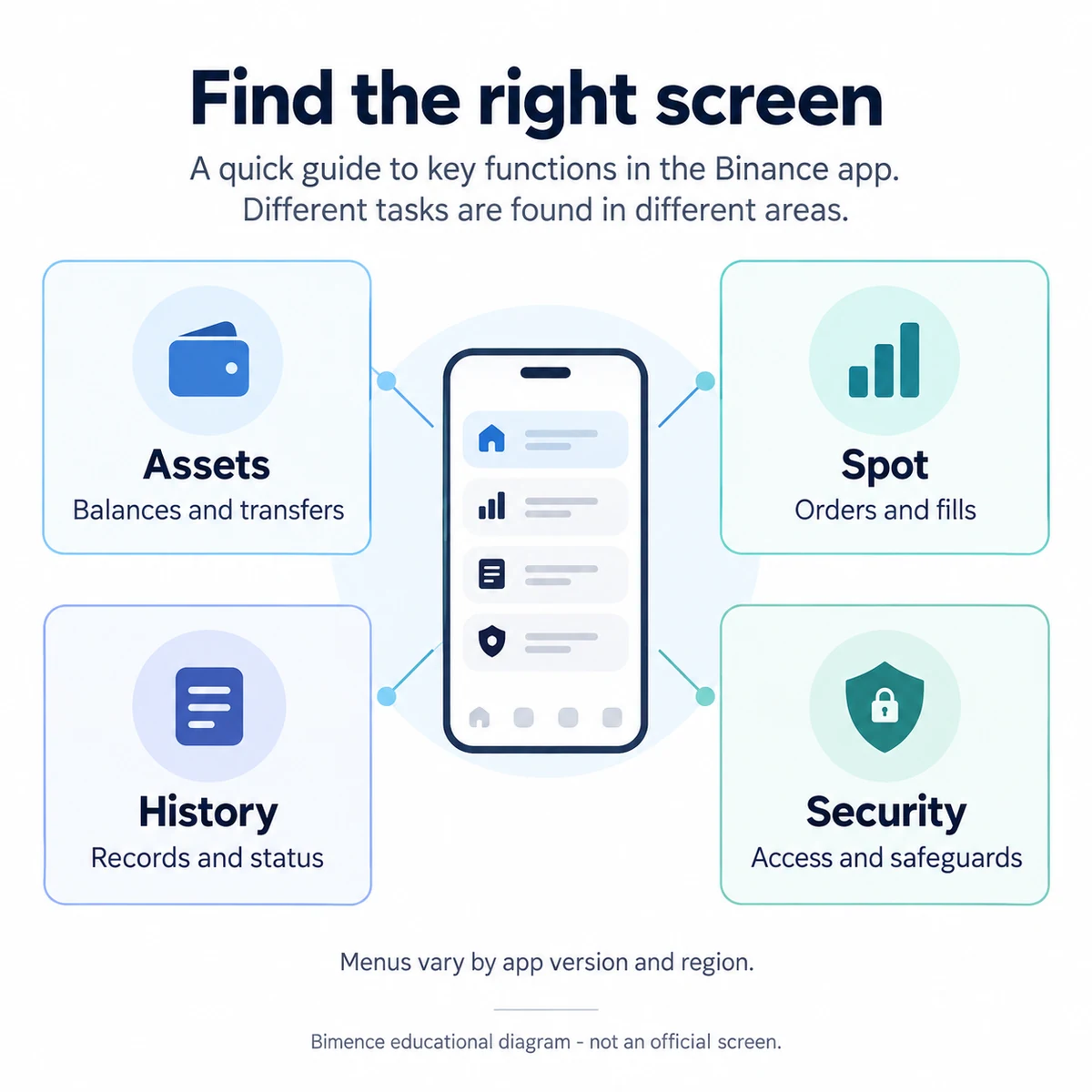
To use Binance after registration, first identify the screen and product, then check the asset, account and available balance before interpreting an action. Assets is for balances and transfers; Spot is for exchange orders; order and trade histories answer different questions. A displayed total value is not necessarily spendable funds, and an order being accepted does not mean it has filled. This guide explains those checks, not whether to deposit or trade.
Last reviewed: October 16, 2026. English Binance support documents were reviewed on this date. Menu names, availability and rollout stages can differ by app version, account and location. No customer account was accessed or tested; the diagrams and worked checks are Bimence explanations, not official screens.
1. Find the right Binance app screen
Before using the app: verify the download source
Use the official Binance download page to select the option for your device. Check the platform and download destination before installing; an advertisement, forwarded file or similar-looking app name is not proof of an official source. App and product availability can depend on your device, account and location; an unavailable option does not justify using an unverified mirror or bypassing a restriction.
Download-source check: November 5, 2026. This section was checked against the official download page; no app was installed or account tested.
Start by naming the task: checking holdings, inspecting an order, reviewing a transfer or securing access. Looking in the wrong product can make a valid record appear missing. This guide concerns the custodial exchange account and ordinary Spot controls, not self-custody wallet setup or a tutorial for leveraged products.
Binance describes Lite and Pro as different app interfaces. Its Pro guide places the mode switch in the account area, reached from the logo at the top left; the option shown is the mode you can switch to. A screen that differs from an older tutorial is not, by itself, proof of an account error. Switching interfaces does not establish permission to use every displayed product. Official Lite/Pro interface explanation.
- Assets / Overview: identify the holding and the account in which it appears.
- Trade / Spot: inspect the selected pair, order form and current orders.
- History: distinguish internal movements, external transfers, order records and fills.
- Security: review account access and safeguards, not investment performance.
If an account is not yet set up, the separate Binance registration guide covers account creation and KYC. Registration and identity verification are not substitutes for checking local product eligibility. A missing or restricted feature is a reason to read the account notice, not to disguise a location or install an unverified app.
2. Read the balance: value, quantity and availability
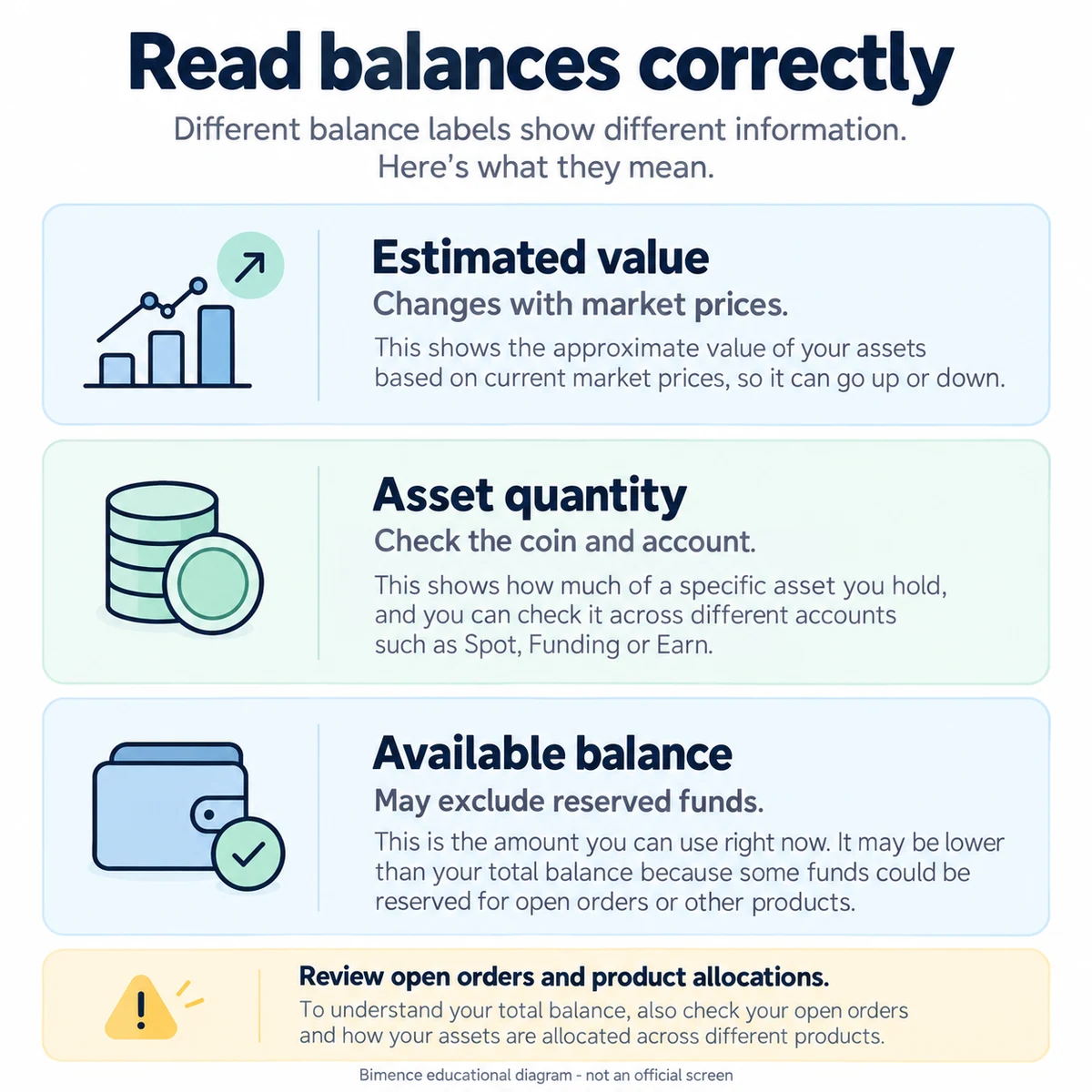
Binance’s wallet guide locates the app overview at Assets → Overview. It displays an estimated total value and individual assets; the eye icon can hide balances. An estimate in a reference currency and the quantity of a coin are different measurements. Official balance and transfer guide.
The Spot activity guide separately identifies total balance, available balance and funds in orders. “Available” refers to funds usable for placing orders in that context. A difference between two screens should therefore be investigated with matching asset and account filters, not immediately described as a loss. Official Spot balance fields.
| Label | What it answers | What it does not prove |
|---|---|---|
| Estimated value | Approximate value using the displayed valuation unit. | A fixed cash balance or realized profit. |
| Asset quantity | How many units of the selected asset appear in that account. | That all units are available for a new action. |
| Available balance | Amount currently available in the relevant product context. | That the same amount can be withdrawn immediately. |
Hypothetical reading exercise: imagine 100 units in a simple balance, with 35 reserved for an open order. If no other reservation applies, the unreserved amount is 100 − 35 = 65 units. This is an explanatory model, not a real Binance account or a universal balance formula. Record reservations and product allocations separately before reconciling a real screen.
3. Check current account structure before moving assets
Current rollout matters. Binance’s Funding-to-Spot migration FAQ says a phased migration of non-stock crypto assets began on September 29, 2026, with completion expected by January 2027. Accounts can be migrated at different times. The same FAQ distinguishes ordinary P2P users from advertisers and changes some settlement destinations. It is unsafe to turn an old “always transfer Funding to Spot first” instruction into a rule for every account. Official Funding-to-Spot migration FAQ.
For a practical check, note the account names actually shown, search for the asset, then inspect relevant movement records and any migration notice. A historical record can retain an earlier account label. Do not move funds merely to make your screen resemble a tutorial. If the current product gives a restriction or unsupported-source message, retain the message and use the official support route.
4. Separate internal transfer from external withdrawal
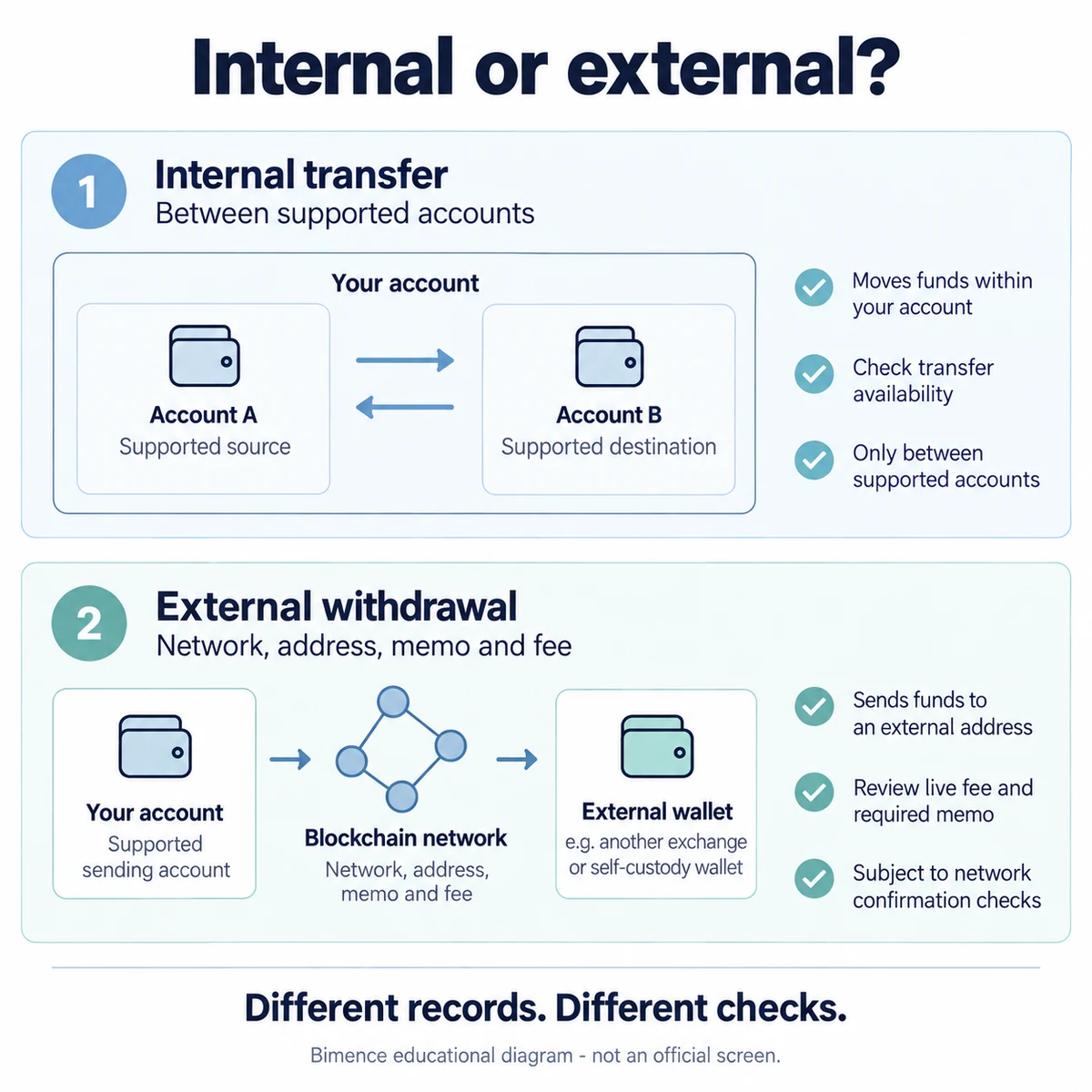
An internal account transfer changes where an asset is held inside the exchange account; an external blockchain withdrawal sends it to an outside address. They require different evidence. Binance’s balance guide shows Assets → Transfer for selecting supported source and destination accounts, an asset and an amount, with a separate history entry. The older Funding example in that guide must be read alongside the current migration FAQ, not treated as universal. Official internal transfer instructions.
- For an internal movement: compare the source, destination, asset, amount and recorded status. A blockchain explorer is not the right place to prove an ordinary internal transfer.
- For an external movement: verify the asset, supported network, full destination address, any required Memo/Tag, minimum and live fee. A similar-looking address alone does not establish network compatibility.
- For status: distinguish the sending request, blockchain transaction where applicable, and receiving-side credit. Do not resend solely because one screen has not updated.
The official deposit and withdrawal guide describes network, destination and confirmation checks. The detailed Bimence deposit and withdrawal checks explain that external-transfer sequence. This overview does not promise a fixed processing time, a fixed fee or a recovery outcome.
5. Understand the Spot order form without submitting an order
The official app guide opens Spot through Trade → Spot. Read the pair before the direction or amount: in a pair A/B, A is the base asset and B the quote asset. The form’s price, quantity and total fields are not three names for the same number. The source-of-funds selector can also matter; only sources currently offered and permitted for the account apply. Official Binance app Spot guide.
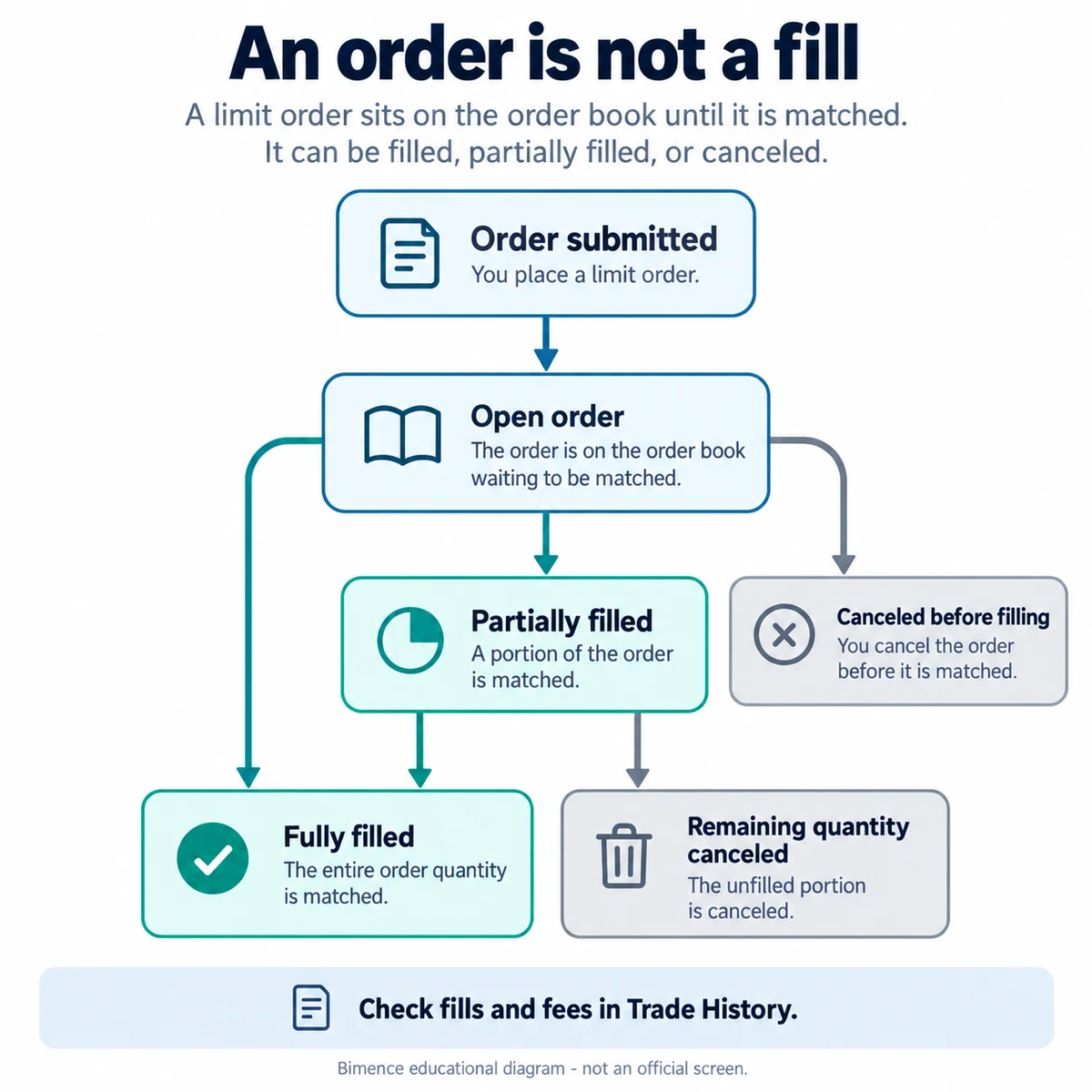
A market order seeks execution against available orders; the displayed estimate is not a guaranteed final average price. A limit order sets a price boundary, not a promise of a fill. Orders can fail or remain unfilled under the applicable conditions. Official market and limit order explanation.
Bimence inspection checklist: read the product label, pair, direction, order type, unit beside each input, available funding source and displayed fee conditions. Stop before submission if any label is unclear. Exploring the screen is not a reason to place a test trade. This guide does not select an asset, order type, amount or entry price for the reader.
For fee categories rather than an old universal percentage, use the Binance fees guide. Any actual charge must be checked in the account’s own fee information and completed trade records.
6. An accepted order is not a completed trade
Open Orders shows outstanding orders; Order History covers prior orders, including unfilled ones; Trade History records executions and fees. Binance’s app activity guide locates the history icon in Trade → Spot. A partially filled order can have a completed portion even when its remainder is canceled. Official order and trade record distinctions.
Before assuming an order disappeared, compare its pair, direction, time, status and filled quantity. Remove an unintended pair or date filter. For an ambiguous submission, inspect the existing order and execution records before sending another instruction. Canceling an unfilled remainder is not a reversal of an execution that already happened.
If records are needed outside the app, the Binance transaction-history export guide explains record types and file checks. The present guide is about reading the screen, not duplicating the export procedure.
7. When the screen or balance looks wrong
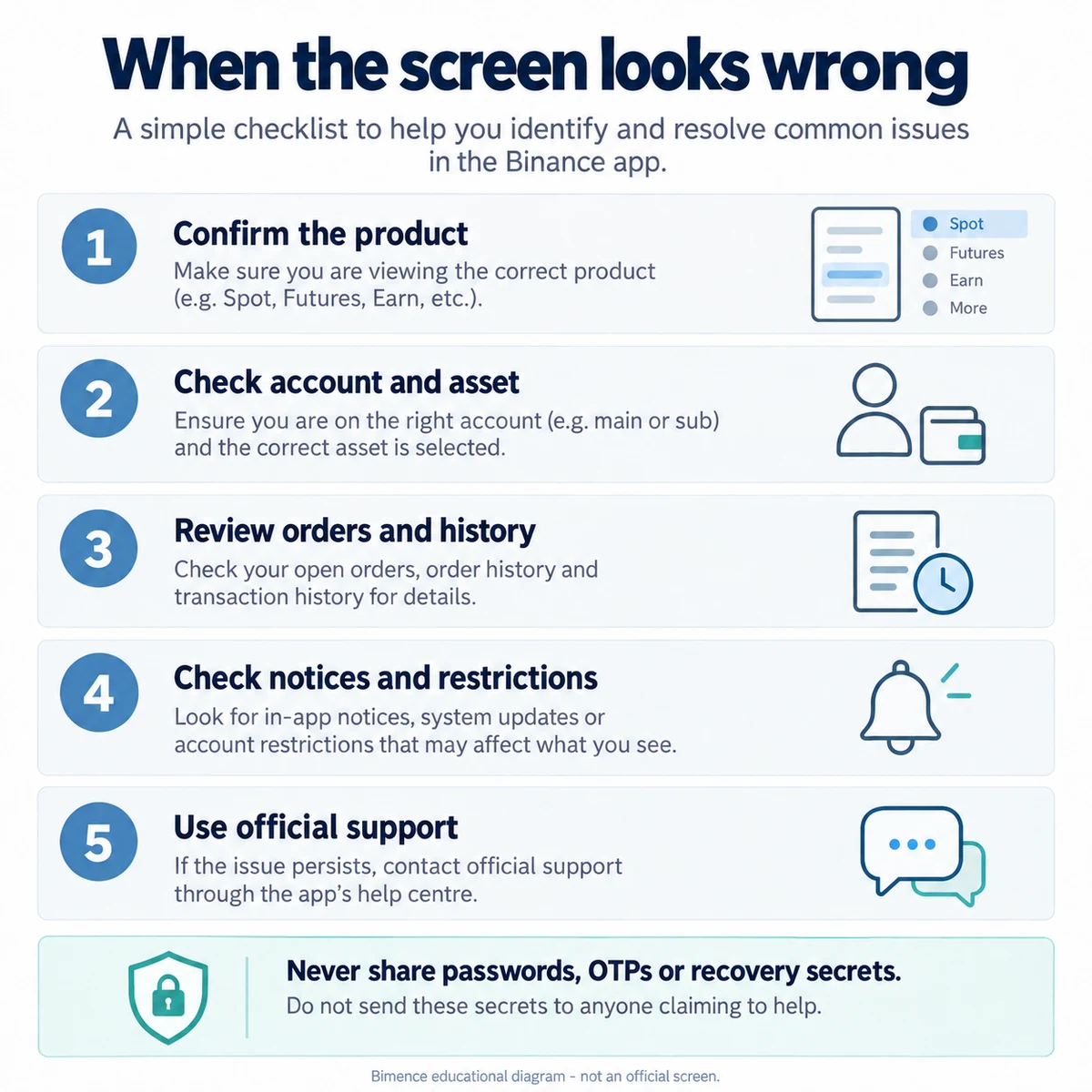
Use a read-first sequence instead of immediately depositing, converting, canceling or withdrawing. The purpose is to identify which record is missing and where the inconsistency begins.
- Confirm the product. Spot, an Earn holding and a self-custody wallet are different contexts. Record the exact heading.
- Match account and asset. Check the signed-in account, selected asset, display unit, balance-visibility control and filters. Do not share identifying account details publicly.
- Review relevant records. Look for an outstanding order, internal movement, product allocation or external transfer. Match timestamps rather than comparing screenshots from different moments.
- Read official notices. Check app-version differences, phased account changes and the restriction shown for this account. An unavailable feature does not justify a location or verification workaround.
- Use official support if unresolved. Provide the product, non-sensitive error text, time and relevant order reference through the verified support channel. Bimence cannot unlock an account, approve verification or recover funds.
Do not send a password, OTP, private key or recovery secret to someone claiming to help. Enter authentication information only in the genuine flow you independently opened and initiated. Binance’s anti-scam guide distinguishes official support from impersonators seeking credentials or transfers. Official anti-scam guidance. The Bimence account-security guide covers additional safeguards.
Common questions about using Binance
Do I need to trade to learn the app?
No. Reading menus, labels, balances and records does not require submitting a new financial instruction. Understanding a feature does not establish that it is suitable or available for your account.
Why does an older tutorial show a different wallet?
The app interface and account structure can change. Check the current account notice and the dated migration FAQ before copying an older transfer sequence. A rollout is not necessarily simultaneous for every user.
Can I spend the total value shown at the top?
Not necessarily. First identify the valuation unit, relevant account, asset quantity and availability. A headline estimate is not proof of a withdrawable cash balance.
Does an order in history mean it filled?
No. Check its status and executed quantity, then the execution records. An unfilled canceled order and a partially filled canceled order do not have the same outcome.
Official sources and editorial boundaries
Checked October 16, 2026. English-language support URLs may use regional locale paths or redirect; a document’s presence does not establish regional product availability. The newer migration FAQ takes precedence for its rollout scope over older Funding examples. Bimence’s checklists and hypothetical arithmetic are explanatory, not Binance account evidence.
- Binance Pro interface and mode switch
- Wallet balances and internal transfers
- Funding-to-Spot migration and phased account changes
- Spot app controls and pair labels
- Market and limit orders
- Spot order, execution and fee records
- Account impersonation and scam precautions
- External deposit and withdrawal checks
Risk and independence: Crypto assets can lose value, and trading, custody, cybersecurity, liquidity and regulatory risks remain. This page is general education, not financial, legal or account-support advice. Bimence is independent of Binance and may receive affiliate commissions through links elsewhere on the site; this guide does not require a referral code or promise a benefit. Read the Risk Disclosure and Affiliate Disclosure.